SuperSplat tutorial: how to clean, crop and publish a 3D scan

SuperSplat is a free, open-source editor from PlayCanvas for Gaussian splat scans, and it runs in your browser with nothing to install. You drop in a .ply, .splat or .spz, paint over the stray blobs and delete them, crop to a box, turn the scan the right way up, then export a smaller file or publish it with a link.
It also got much lighter to run this autumn. PlayCanvas shipped SuperSplat Editor 3.0, rebuilt on WebGPU, on 9 September 2026. On a 4.4 million splat scene, a 990 MB PLY, the editor’s memory with the scene loaded fell from 1,557 MB to 105 MB.
I build real-time 3D for the web: my Hermès virtual store, the TAG Heuer showroom I built at Napster, and SEVEN Al Hamra, a building you could walk through before it was built. For splats, my live demo is tawfik.tv/window. It renders Spark’s own sample scene, a fireplace, not a scan of mine, as if your screen were a pane of glass. What a splat is and how to capture one is in Gaussian splatting on a website. This page is the step in between: cleaning a scan so it is fit to publish.
What is SuperSplat?
SuperSplat is PlayCanvas’s tool for inspecting, editing, optimising and publishing Gaussian splats (README). Three things to know:
- It is free and open source. The Editor’s code is on GitHub under the MIT licence, and so are its viewer and the splat-transform converter. The hosting at superspl.at, where published scenes live, is run by PlayCanvas (overview).
- Your scan stays on your machine until you publish. The Editor loads files locally. Only publishing needs a free PlayCanvas account.
- It needs WebGPU. Current Chrome or Edge, Safari 26 or later, or Firefox with WebGPU switched on (getting started).
How do I open a .ply, .splat or .spz in SuperSplat?
- Go to superspl.at/editor.
- Drag your file onto the window, or use File > Import. It reads .ply, .compressed.ply, .sog, .splat, .ksplat, .spz and XGRIDS .lcc files (formats). A .ply must hold splat data: a mesh PLY from a modelling tool will fail to load.
- Find your way round. Left-drag orbits, right-drag pans, the wheel zooms, double-click sets the point you orbit around, and F frames the selection.
You can also open a scan straight from a link:
https://superspl.at/editor?load=https://example.com/scans/postbox.ply
How do I delete floaters in SuperSplat?
Floaters are stray blobs hanging in the air where the training software was unsure what it saw. PlayCanvas’s own guide says most raw captures contain them, and that removing them is the single biggest quality win.
- Press N to turn on Selection Depth, so the tools stop at the visible surface instead of reaching through the scene. Press Tab to show each splat’s centre.
- Press B for the brush and paint over the floaters. [ and ] change its size. Hold Shift to add to the selection and Ctrl to take away from it.
- For a lone clump, press O for Flood Selection, which grows a selection from where you click.
- Press Delete. Turn the camera, look again, repeat.
- Took too much? Ctrl+Z undoes (Cmd+Z on a Mac), and Select > Reset brings back every deleted splat.
When an area is finished, select it and press H to lock it, so a stray brush stroke cannot touch it. Shift+H unlocks everything. Every tool and key is in PlayCanvas’s selection guide and shortcut list.
Try it on a sample scan of a London post box. This brush reaches through the scan, as SuperSplat does with Selection Depth off, so turn the view when the post box gets caught.
Clean a scan: brush away the floaters, crop to a box, watch the file shrink
A sample phone scan of a London post box, as it arrives: grey wisps in the air, a wall behind, pavement to the horizon. Brush the wisps and press Delete. Then crop: Crop box, Select inside, Invert, Delete.
This editor needs JavaScript. The same cleanup in SuperSplat, in order:
- Open the scan at superspl.at/editor and drag the file in.
- Brush over the floaters (B), press Delete, turn the view and repeat.
- Box Selection around what you keep, Select, Invert (Ctrl+I), Delete.
- File, Export, SPZ or SOG. A full PLY stores about 248 bytes a splat; my window demo's .spz holds 301,000 splats in 4.4 MB.
postbox-scan.ply
A made-up sample, drawn with one dot for every 420 splats. Sizes use 248 bytes a splat for a full PLY, from the original research code, and 14.6 bytes a splat for .spz, the rate of the 301,000-splat, 4.4 MB fireplace in my window demo.
How do I crop a splat in SuperSplat?
Cropping keeps what is inside a shape and deletes the rest: the street behind your subject, the ring of blurry ground every outdoor scan drags in.
- Pick Box Selection, or Sphere Selection, and double-click in the scene to place it.
- Shape it with the gizmo: 1 moves, 2 rotates, 3 scales. Or type its position and size.
- Click Set to select everything inside. Leave Selection Depth off here, so the box reaches through the whole scene.
- Choose Select > Invert (Ctrl+I), then press Delete.
How do I fix the orientation and scale?
Scans often load on their side or upside down, and at no real-world size. The transform guide covers three fixes:
- Level it. Pick the Orient tool, click three points on something that should be flat, such as the floor or a table top, and press Align to Grid. If it comes out upside down, orbit underneath and press Align to Grid again.
- Move, turn or resize it by hand. Choose Select > None first so the whole splat moves, then use Move, Rotate and Scale (1, 2, 3).
- Give it a true size. The Measure tool reports the distance between two points. Type the real distance, from a doorway you measured with a tape, and SuperSplat rescales the whole scan to match. The grid is in metres.
How do I compress and export from SuperSplat?
File > Export offers PLY, SOG, SPZ, Splat and Viewer App, and only visible splats are exported.
- SPZ for a web page you build yourself. It is Niantic’s compressed format; SuperSplat writes version 4 by default and version 3 for older readers.
- SOG, PlayCanvas’s own compressed format: a zip of WebP images and a small JSON file, which its docs recommend for apps. Spark reads both SPZ and SOG.
- PLY as your full-size master copy. Tick Compress PLY to write a smaller .compressed.ply.
- SH Bands sets how many bands of spherical harmonics go in: the numbers that let colour change with viewing angle. Fewer bands means a smaller file and flatter shine.
Ctrl+Shift+E repeats the last export to the same file. File > Save keeps an .ssproj project with your edits, so you can come back later.
What you delete counts twice. A full PLY stores about 248 bytes a splat, so every 100,000 floaters you cut is about 25 MB off the master.
How do I publish or embed a SuperSplat scene?
Three ways, from least work to most control.
- Publish to superspl.at. Log in, frame the view people should see first, then File > Publish with a title and a description. SuperSplat compresses the scan to SOG, which can take several minutes, and gives you a scene page. New scenes are unlisted: only people with the link can see them. On the scene page, Embed gives you an iframe for your own site, and later changes you make in Studio show up in it (publishing guide).
- Export a Viewer App. File > Export > Viewer App gives you one HTML file with the scan inside, or a ZIP with the viewer and an index.sog. The single file is about 30% larger, and PlayCanvas says files under 32 MB should load everywhere. The ZIP only runs over http://, so test it with a local server before you upload it to any web host (self-hosting guide).
- Your own page, with Spark. See the next section.
To test an unzipped Viewer App on your own machine:
cd postbox-viewer        # the unzipped Viewer App
python3 -m http.server   # then open http://localhost:8000
How do I put a cleaned scan on my own website?
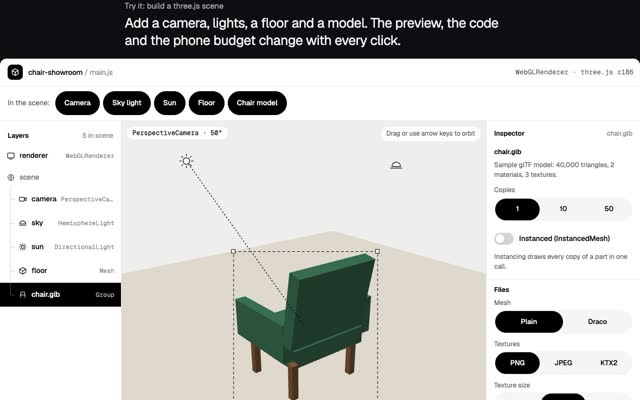
Export SPZ and load it with Spark, the three.js splat renderer my window demo uses. The heart of it is one line:
const scan = new SplatMesh({ url: "/scans/postbox.spz" });
The whole page, about 20 lines, and what broke when I shipped mine are in Gaussian splatting on a website. Which route to take:
- The iframe when the scan is the whole story and PlayCanvas’s viewer controls suit you.
- Your own page when the scan sits inside your design, next to other 3D objects, or needs controls of its own. My window demo moves the view with your cursor, your phone’s tilt or your head, which a stock viewer does not do.
Two cleanup habits pay off on your own page:
- Crop to where people can look. Shipping the window demo taught me that a scan stops where the photos stopped, and people see black at the edges unless you limit how far the camera travels. Crop to that same limit and you stop shipping splats nobody can see.
- Count your splats. Spark’s performance guide suggests 1 to 3 million splats on an iPhone and 1 to 2 million on an Android phone. Cropping is the cheapest way under budget.
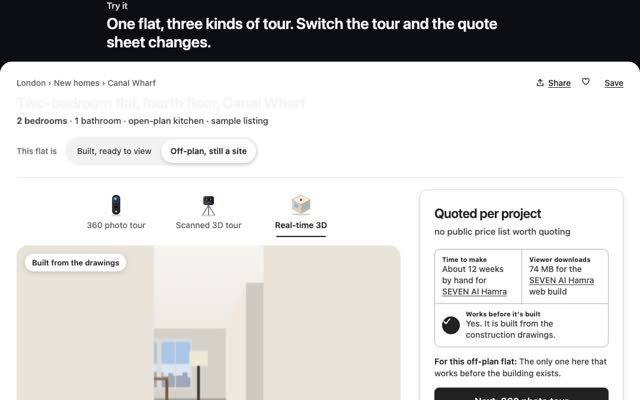
If the scan is one room in a bigger 3D site, see how I build three.js websites. If you are pricing a walk-round of a property or venue, what a 3D virtual tour costs compares splats with 360 photo tours and scanned tours.
Questions people ask
Is SuperSplat free?
Yes. The Editor is open source under the MIT licence and free to use in the browser. Publishing to superspl.at needs a free PlayCanvas account.
Does SuperSplat upload my scan?
Not while you edit. The Editor loads files locally, and nothing is uploaded until you choose Publish.
Can SuperSplat convert PLY to SPZ?
Yes. Open the PLY and choose File > Export > SPZ. PlayCanvas also runs a converter page at superspl.at/convert, built on its splat-transform tool.
Why won’t my PLY open in SuperSplat?
It may be a mesh, not a splat: SuperSplat only loads PLY files that hold Gaussian splat data. It also needs a browser with WebGPU.
Is SuperSplat the same as Spark?
No. SuperSplat is PlayCanvas’s editor and viewer. Spark is a separate splat renderer for three.js, built by World Labs.
If you want a scan cleaned and built into your own site, see 3D web experiences or write to me at m@tawfik.tv.